AcpStyles
ACP offers a wide variety of styles and options to control the look and functioning of the user interface that go beyond what is (currently) available in Desktop Analytica (DTA).
The easiest way to select these styles and options is to use the ACP Style Library. Select Add Library... from the File menu and select the ACP Style Library to add into your model. This library lets you select most ACP styles and options interactively from checkboxes and menus. You can configure Navigation styles, Node styles and Frame nodes. For many options, it shows a preview of what it will look like in ACP. When you set an option, it automatically sets the corresponding CloudPlayerStyles, so you don't need to worry about them, and can ignore the rest of this page.
This page is for those geeks who want to know the details of these CloudPlayerStyles, or want to use those few CloudPlayerStyles not (yet) settable in the ACP Style Library.
You set general styles and options that apply to the whole model by adding flags to the CloudPlayerStyles attribute for the main model. You set styles specific to a particular module or node by adding flags to the CloudPlayerStyles attribute for that object.
The easiest way to view and edit the CloudPlayerStyles attribute in Desktop Analytica is to use the Attribute panel. Select CloudPlayerStyles from the list of Attributes at the top of that panel. By default, CloudPlayerStyles is not shown in the Object window, but you can set it to be shown in the Attributes dialog.
When you put multiple flags in a single CloudPlayerStyles attribute, you can separate them by commas or spaces, as you prefer. We recommend putting each on a separate lines for clarity. ACP just looks for the particular text values and doesn't care about the delimiters.
Model level settings
These styles apply to the entire model. You set each flag in the CloudPlayerStyles attribute for the Main Model. (Adding a CloudPlayerStyles tag to a submodule has no effect.)
These styles control the main look of the model and how users can navigate to modules and other elements. Options include an Outline tree (similar to the Outline view in DTA), a hierarchy header similar to DTA's show hierarchy, and tabs across the top or down the left not available in DTA.
Outline Tree
By default, ACP shows an expandable outline tree of modules on the left hand side of the window, similar to the Outline view in Analytica on the desktop. This makes it easy to navigate a model with an extensive hierarchy of modules.
For small models, and most web apps, you may want to suppress the Outline view. Do this by inserting the text show_outline: no into the top model's CloudPlayerStyles attribute. (If a model has only one diagram, i.e. with no modules, the outline tree never shows.)

Module hierarchy bar
For a multi-module model, ACP normally shows the model hierarchy in a bar at the top of the diagram. The model hierarchy header shows you where you are in a large model by listing the titles of the ancestor modules in which the current diagram is nested. You can click any ancestor to click up levels in the hierarchy. The Hierarchy Bar takes up much less screen real estate than the Outline Tree.
With tabbed navigation style, it doesn't show the hierarchy bar when you are viewing a top level module, since its title is already in the selected tab. With a two-level tab navigation, it shows the hierarchy bar only when viewing a module nested 3 or more levels down. Basically, the hierarchy header does not duplicate what you can see in the tabs.
Note that this setting is not based on a CloudPlayerstyle attribute, but rather on the Show module hierarchy check box in the model Preferences in Analytica. With the model opened in Analytica, on the Edit menu, select Preference..., and check (or uncheck) the Show module hierarchy checkbox.

Toolbar Tabs
show_tabs: no
- By default, ACP shows navigation tabs for "Diagram", "Object", "Table", "Graph" along the top. Use this flag to hide those tabs. If you display the model inputs and outputs on the diagram -- using embedded tables and graphs on the diagram -- your users may not need those tabs. (You can also use
show_tabs: yesto explicitly show the tabs.)
- By default, ACP shows navigation tabs for "Diagram", "Object", "Table", "Graph" along the top. Use this flag to hide those tabs. If you display the model inputs and outputs on the diagram -- using embedded tables and graphs on the diagram -- your users may not need those tabs. (You can also use
Using the navigation_style CloudPlayerStyle setting, you can configure ACP to use 'Tabs across top' (i.e. top tabs) or 'Tabs down left' (i.e. side tabs). In this case, the tabs display different influence diagrams. The first tab displays the top level diagram, and the remaining tabs display the modules present on the top level diagram of the model. (The modules will not display on the diagram, so you need to tweak your diagram for playing in ACP so that it looks right without these present). The size of the diagram is determined by the size of the top level diagram window when the model was last saved in Analytica.
navigation_style: top_tabs
- This setting instructs ACP to use the 'Tabs across top' navigation style.

navigation_style: side_tabs
- This setting instructs ACP to use the 'Tabs down left' navigation style. Side tabs work better than top tabs when there are more module nodes present.

two_tiers_tabs:yesWith top tabs or side tabs. Useful for modules with several layers of modules and submodules - to reduce the clutter of the top layer of tabs. Modules in the model's top diagram appear as top tabs (left tabs). Modules within those top level modules appear as subtabs, the 'second tier'. When you select a top-level tab, it shows its submodules as subtabs. This means that the top level of modules will not show any contents other than their submodules, so the model needs to be designed with this in mind.- Currently this must be used with the
show_as_tab: nostyle set. - The selected tab appears with the color of the diagram background of it's module
Tab color
When using Tabbed Navigation, you can use these flags to control how the color of the tabs display on your model in ACP. To use, add one of them to the CloudPlayerStyle attribute of the top level diagram of your model. They have no effect if added to a module other than the top diagram.
Tab_color: Default- The default. Non-selected tabs are all blue white. Selected tab matches the background color.Tab_color: Background- All tabs selected or not match the diagram background colorTab_color: Node- Selected Tab matches the diagram background color; Non-selected tabs match the color of the Module node.
all_tabs_diagram_color: yesThis flag has been deprecated and may not work in future ACP releases. Replaced byTab_color: Background.
Display Only a Single Diagram
top_diagram_only: yes
- Use this flag if you want to restrict users access to only the top diagram. With this flag, any action that would normally bring up a different diagram will just reload the top diagram. (If you are using this setting, you will also want to also not display the Outline Tree as explained above.)
Go into Parent Button
Note that this button is not present in the top diagram in ACP 3, only within Modules
There are two flags for configuring the Go into Parent button (shown below). One for suppressing its display, and another for changing its location.

show_parent_diagram_button: no
- Flag to control the display of the 'Go into Parent' button. Currently the button is shown by default.
parent_diagram_button_coordinates: x, y
- if you want to change the location of the button 'Go into Parent' you can use this flag. E.g.
parent_diagram_button_coordinates: 10, 100will change the position of this button tox = 10, andy = 100. These coordinates are measured from the top left hand corner of the window.
- if you want to change the location of the button 'Go into Parent' you can use this flag. E.g.
Show the parent diagram button in 'tabs across the top' navigation style
- If you want to display the 'Move Into Parent' button in your model which uses tabs across the top navigation:
- Add the
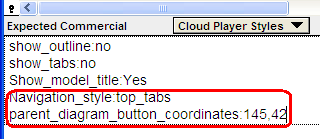
parent_diagram_button_coordinates: xyACP attribute style flag, along with thenavigation_style: top_tabsflag (see Tabbed Module Navigation below) to the CloudPlayerStyles attribute. The actual coordinates of your parent diagram button may need to be tweaked.
- Add the
- The parent diagram button will only appear in Submodules within a tab.
- In other words, when you click on a tab, and a diagram appears, there will be no parent button.
- But when you click on a Submodule within that tab, you will see the parent button and can use it to "drill up".

Show or hide the Diagram Title and Model title
You should use the ACP Style Library if you want to change the defaults for these flags, since they are only compatible with certain combinations. The Styles library changes all the flags at once, and prevents you from entering incompatible combinations.
show_diagram_title: no
- You can control whether or not to display the diagram's title at the top of the diagram. Use
show_diagram_title: noto suppress the diagram title. You can also explicitly tell ACP to show the diagram title by usingshow_diagram_title: yes, but this is not really necessary because the currently ACP shows the diagram title by default.
- You can control whether or not to display the diagram's title at the top of the diagram. Use
show_model_title: yes
- Show title of the model at the top to right of the Lumina (or other) logo. Note this flag only works properly when you also Hide Tabs because the tabs and title will overlap.
Hide the Banner and Logo
Another flag it's easier to use the ACP Style Library to set, since it is only compatible with the parent button and toolbar tabs hidden. The Styles library changes all the flags at once, and prevents you from entering incompatible combinations.
show_banner: no
- Hides the banner space usually present at the top of ACP. The banner typically contains the Lumina Logo, the Parent Diagram button, tabs, Close Model button, and Save button.
- This could be useful for customizing the appearance of a model embedded in a web page, for instance.
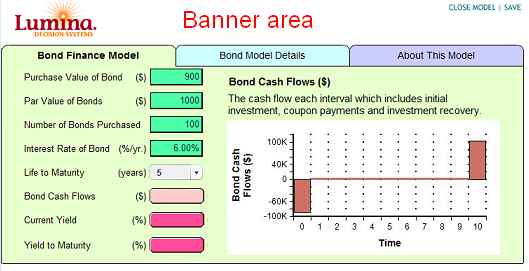
- If you play a model without the banner area in ACP, there isn't a convenient way to close the model without closing the browser.

Exclude the top level diagram from tabs
You should use the ACP Style Library if you want to set this flag, to avoid incompatible settings.
- Optionally, Enter the text
Show_as_tab: noin the CloudPlayerStyles attribute of the top level module.
show_as_tab: no
- Excludes the top level diagram and just shows the submodules of the top level diagram as tabs. Can be used only with 'Tabs Along top' or 'Tabs down left' styles.
- When setting tabbed Navigation styles using the ACP Styles Library, the default is for the Top level diagram to be excluded.
If you want to see what it looks like, play this model Array examples in ACP, with the show_as_tab: no style in the cloud player styles attribute, and set to tabs along top.

- Play this model in ACP and the top level diagram does not show. Rather the diagram for 'Intro to Arrays' shows as the first tab and then the other tabs.

Styles for diagram nodes
You can set some styles for your model which will affect how nodes on the diagram are displayed.
Show_table_graph_toggle:no
- Turns off the table / graph toggle button. Can be used as a model level flag, or as a flag for individual nodes. When used as a flag for individual nodes, it trumps the global flag, if present. Can save you some space if this button is not needed, or you have set your model up to show the only result you want the model viewer to see.
ShowIONodeButtonText: no
show_unc_view_in_outputs: no
- In Desktop Analytica, each user output node has a little icon on the right-hand side showing the uncertainty view last viewed (e.g. mid, mean, stats...). In ACP, you can suppress these with the flag
show_unc_view_in_outputs: no. We recommend this for ACP since the icon is usually confusing to end users. This style should be applied to the top level model object. It does have any effect currently when applied to individual nodes.
- In Desktop Analytica, each user output node has a little icon on the right-hand side showing the uncertainty view last viewed (e.g. mid, mean, stats...). In ACP, you can suppress these with the flag

calc_on_open: yes
- By default, ACP, like Analytica, does not compute results when you first view a diagram, leaving any User output nodes showing the Calc button. The user must click on each to see its result, as a scalar embedded in the Diagram, or as a separate Result window. Unless some results take a long time to evaluate, it is usually friendlier to compute the values before showing the Diagram. You can make this happen by inserting
calc_on_open: yesinto the top level diagram's CloudPlayerStyles attribute. This flag doesn't have any effect currently when applied to individual nodes.
- By default, ACP, like Analytica, does not compute results when you first view a diagram, leaving any User output nodes showing the Calc button. The user must click on each to see its result, as a scalar embedded in the Diagram, or as a separate Result window. Unless some results take a long time to evaluate, it is usually friendlier to compute the values before showing the Diagram. You can make this happen by inserting
auto_recalc_results: yes
- Causes ACP to immediately recalculate any result when the user changes an input on that diagram that affects the result.
show_hover_highlight: no
- By default, ACP displays a hover highlight -- a contrasting light rectangle behind a node -- when you move the cursor over the node. You can suppress this by including the
show_hover_highlight: no. This style should be applied to the top level model object. It does have any effect currently when applied to individual nodes. (The hover highlight is different from the Help Balloon described below.)
- By default, ACP displays a hover highlight -- a contrasting light rectangle behind a node -- when you move the cursor over the node. You can suppress this by including the

show_copy_table_icon: no
- Usually, ACP displays a copy table icon near the upper right hand corner of a result table (or edit table, but less useful here). Clicking the icon copies the table as displayed so it can be pasted into another place, e.g. Excel. If you want to hide this icon, this is the flag to use. The Copy Table Icon is the icon shown in the image below. This style should be applied to the top level model object. It doesn't have any effect currently when applied to individual nodes.

ShowIONodeButtonText: no
- This flag will cause the text Calc/Result/Edit Table etc. to not appear on the input / output buttons
- Needs to be added to the
Cloudplayerstyleattribute for the top diagram of your model. Has not yet been implemented for individual nodes.
Balloon Help
When you move the cursor over a node, ACP usually shows a "balloon" popup next to the node with the title, units and description of the node (if it has one) to help end users understand what its for, or what to enter for a user input. If the node has no description, the balloon help will not appear.
show_id_in_balloon: yes
- Use this flag to show each node's identifier below its title in the balloon -- unless the identifier and title are identical (except for spaces which are replaced by underscores).
show_definition_in_balloon: yes
- Use this flag to show the node's definition in the balloon below the description.
hover_balloon_delay
- When you mouse over a node, there's a short delay of about half a second before it displays the balloon (to prevent wild balloon appearance when you move the cursor rapidly over a diagram.) You can tweak this delay time measured in milliseconds by inserting this flag. E.g.
hover_balloon_delay: 200to reduce the delay to .2 seconds.
- When you mouse over a node, there's a short delay of about half a second before it displays the balloon (to prevent wild balloon appearance when you move the cursor rapidly over a diagram.) You can tweak this delay time measured in milliseconds by inserting this flag. E.g.
The three flags above go in the CloudPlayerStyles of the model and apply to all nodes in the model. You can also modify some aspects of the balloon separately for each node by inserting these flags in CloudPlayerStyles for each node:
show_hover_balloon: no
- Insert this flag in the CloudPlayerStyles for a node, to suppress display of its balloon.
show_hover_balloon_title: no
- Insert this flag in the CloudPlayerStyles for a node, to suppress its title in the balloon.
Enhanced Diagram Graphics
You can control the appearance of nodes, with bevels, shadows, and highlights, by setting these in the CloudPlayerStyles for the model. By default (for now) ACP displays nodes without these effects, similar to Desktop Analytica, looking rather flat like this:

node_drop_shadow: yes
- Setting this flag, displays a drop shadow behind each node, giving a kind of 3D effect:
- Setting this flag, displays a drop shadow behind each node, giving a kind of 3D effect:

bevel_node_border: yes
- Setting this flag, displays a bevel border for each node, giving another kind of 3-D effect:

glow_hover_highlight: yes
- Set this flag to show a "glowing" highlight around each node when you move the cursor over a node.
glow_hover_highlight: no. Switches off this behavior, which is the default behavior in ACP
- Set this flag to show a "glowing" highlight around each node when you move the cursor over a node.
Here is the glow hover effect on a node, along with Drop shadow and Beveled border effects.

These effects are new and are still somewhat experimental, so, they are off by default. You are welcome to try them out, by setting CloudPlayerStyles for the main model. Eventually, these effects may become the default. Then you'll be able to turn each one off using Node_drop_shadow: no, Bevel_node_border: no, andGlow_hover_highlight: no.
Styles to adjust the ACP canvas
Set the ACP canvas size
The default ACP3 Flash Canvas is set to "100%". This means that the canvas is the same size as the browser window.
There are two cloud player styles for optionally controlling screen size.
screen_width: 999, andscreen_height: 999
- where 999 is the number of pixels to use for your ACP canvas. If you use these flags you need to add space for the Banner/Tabs/Hierarchy headers or the outline on the left.
Scroll Bars
Add_scroll_bars: no
- You can add this flag to the top level diagram's CloudPlayerStyles attribute if you want to suppress the scroll bars which would otherwise appear on a large diagram.
Other Model level styles
Message boxes
message_box_location: x, y
- By default, ACP shows error and other message boxes right in middle of the screen, but you can change where these display using this flag. Set this flag - with the x, y coordinates in pixels on the ACP canvas - where you want the message boxes to display. Needs to be put into the CloudPlayerStyles attribute for the top diagram of your model.
Node Level Settings
These style flags and options apply to individual nodes (variables), rather than the model as a whole. So, you set these flags on the CloudPlayerStyles for selected objects (nodes).
Input nodes
textalways
- Usually in ACP and Desktop Analytica, to enter a text value into a user input node you have to enclose it in quotes. Insert this flag into the CloudPlayerStyles for each Input node if you want it treat the input as text without requiring the user to use quotes. Note this flag is inserted into the Formnode's CloudPlayerStyles attribute and cannot be done in the Object window or attribute panel. Instead figure out what the identifier of the formnode is and then set the CloudPlayerStyles in the typescript window.
tabindex: n
- In ACP and Desktop Analytica, the user can press tab to go to the next input control to enter its input. You can control the tab order -- the sequence followed by tabbing through inputs -- by adding this flag. Put
tabindex: 1into the CloudPlayerStyles of the first one. Puttabindex: 2into the second, and so on. Note this flag is inserted into the Formnode's CloudPlayerStyles attribute and cannot be done in the Object window or attribute panel. Instead figure out what the identifier of the formnode is and then set the CloupPlayerStyles in the typescript window.
- In ACP and Desktop Analytica, the user can press tab to go to the next input control to enter its input. You can control the tab order -- the sequence followed by tabbing through inputs -- by adding this flag. Put
Other node level flags
Prevent nodes from showing on the diagram
Show_Object: no
- You can prevent nodes or modules from showing on the diagram of your model, by adding this flag to the CloudPlayerStyles attribute of the object you wish to hide.
- Once played in ACP the objects aren't visible, and if the outline is displayed the module will not be shown in the Outline either.
Special Flags
Download_Spreadsheet:xyz.xlsx
- This Cloud Player style allows you to download a spreadsheet while playing a model. You could of course have modified this Spreadsheet while working with the model.
- This flag can be added to the CloudPlayerStyle attribute of a button. E.g. if you want to download
xyz.xlsxyou adddownload_spreadsheet xyz.xlsxto the CloudPlayerStyle attribute of the button. Then when pressed the button will prompt you to save the file. - You can't download a spreadsheet in the same button click that causes a spreadsheet to be uploaded.
- If you don't specify the name of the spreadsheet file ACP downloads the last file uploaded without a dialog.
- This is not the same as using SpreadsheetSave() {If you evaluate a variable in your model using SpreadsheetSave, it will save the spreadsheet to the server by default}.
You can also do this "on the fly" in your model by having an OnClick attribute that sets this flag in the CPS attribute.
Save_on_click:yes
This flag can be added to the cloudplayerstyle attribute of a button. Then it works as a "save as" button. Ie the save dialog opens when the button is pressed.
"ACP_save_as_filename" variable
Can be used to create a custom default model name in the save as dialog. Used in combination with the save_on_click:yes flag.
- In Desktop Analytica, add a variable to your model with the identifier
acp_save_as_filename
Here is an example model using the save_on_click:yes and acp_save_as_filename flags.
"Save_as_Public:Yes
Another flag which can be used with a button, only in combination with the cloudplayerstyle save_on_click:yes. This flag causes the access of a model snapshot saved in a group account to be public by default.
Asychronous calls
See the what's new page here also Explanation of ACP's use of Asynchronous polling
use_async_calls: no
- This flag needs to be set in the top diagram of your model if you don't want to use asynchronous calls. This may slightly speed up model playing for some models of course, you don't want to add this flag if you have features in your model which require asynchronous polling)
use_async_calls: yes
- This flag has been deprecated since asynchronous polling has been implemented as default in ACP, and will be removed from this wiki eventually.
"ACP Current User" Variable
Add a variable to your model which will show the current user's email address as a result.
- Open the model in Desktop Analytica.
- Add a variable with identifier
Acp_current_userto the model and save it.

- When you play the model in ACP, and evaluate Acp_current_user, the result is the user e.g.
[email protected]{when playing an email invite the result will be "anonymous"}.

Embedded Tables and Graphs
In ACP it is possible to display graphs and tables directly on the diagram. The CloudPlayerStyles can be used to specify the region on the diagram to display these tables or graphs.
More on embedded tables and graphs.