Cell format dialog
New to Analytica 5.0

The Cell format dialog lets you set formats and styles for cells in a Table view. It includes tabs for Fill, Alignment, Font, and Border styles, each described below, and Number format explained on its own page.
To open the Cell Format dialog
- Show a result table or edit table.
- Select the cell, row, column, or region whose format you want to modify:
- To select the entire table, click the top left cell, above row headers and to left of column headers, or press ctrl+A (for select All)
- To select an entire row or column, click on its header cell.
- To select a rectangular range, press on a cell and drag to the opposite corner cell
- Then do one of these:
- Select Cell format.. from the Result menu
- Right-click on and select Cell format.. from the right-click menu
- Press Ctrl+Alt+F, which opens the dialog on the last tab you used
- Press Ctrl+B, which opens the dialog on the Number format tab
It is important to select the table region you want to format before you open the Cell format dialog because the Dialog is "modal" -- that means you can't modify the region unless you close the dialog, reselect the region, and reopen the dialog. (Yes, we know this is lame. We'll fix it in a future release.)
Apply changes to

When you have header cells selected when you bring up the dialog, the Apply changes to option appears at the bottom of the dialog, where you can specify whether the changes you make apply to the header cells, body cells or both. This panel does not appear when no header cells are selected, and in that case changes apply only to body cells.
One subtlety is that if you bring up the dialog from the right-mouse menu, the default is determined from where you clicked when you right-clicked for the menu. If you right-clicked over a header cell, then Headers only is initially selected. If you right-clicked over a body cell, then Headers and body is initially selected.
Number
The number tab contains the number format dialog. Please see Number format for details.
On the menus, both Number format... and Cell format,,, are included on the menus, even though both bring up this same dialog. The difference is that the Number format... option always opens to the Number tab, and because it is used more frequently than other cell formats, both formats are provided. The Cell formats... dialog always opens to a tab other than the Number tab -- the previous non-Number tab if the dialog had been accessed from the table previously.
Fill format tab
Use the Fill tab to specify the background color for cells. Select the color from the grid of colors, or access the full spectrum of colors from the More colors... dialog.
The 16 colors at the bottom of the grid are your custom colors. These are stored for you on your computer, and are not saved with the model. If you have favorite colors, you can configure these for easy access. You define which colors are on your custom color palette from the More Colors... dialog. The steps for doing this are tricky, and are explained at custom colors.
The transparency slider makes it convenient to lighten colors. Many of the base colors are too deep and saturated for cell backgrounds, and would make it hard to see the text on top. The transparency slider makes it convenient to lighten these. Since for body cells the color appears over a white background, the resulting color is equivalent to some RGB color that you could theoretically select from the More colors... dialog. But when the fill applies to a header cell, it is not equivalent, since the selected color appears over a gray header background, so that with transparency, header cells appear a bit darker than body cells. With a full opaque selection, the color will appear the same in both header and body cells.
Alignment format tab

The options at the top of this dialog controls the text alignment, which is sometimes also referred to as text justification.
The horizontal default for body cells right-aligns single-line content, and left-aligns multi-line text. The vertical default top-aligns text and images but center-aligns controls that appear in cells.
Indent applies to the side specified by the horizontal alignment. The unit of indent is roughly the width of a space character. For a nice example of indenting of index elements, please see the Cash Flow Statement in the Enterprise Model example (which is in the Financial statements module), where indent has been used to organize the line items into categories.
Text entry
The Text entry' section appears at the bottom of the Alignment pane when you are setting the formats for an editable table. Here you can control how text typed into a cell of the table is parsed. By selecting Text only, Number only or Number of text only you exclude the use of Analytica expressions or functions in the cells, which also prevents text that coincidentally happens to match an existing identifier or happens to be a valid expression from being interpreted as an expression. In addition, it eliminates the need for the table to show quotes around content.
Font format tab

You can change the font face, size, color, and style from the Font tab.
Border format tab
 :
:

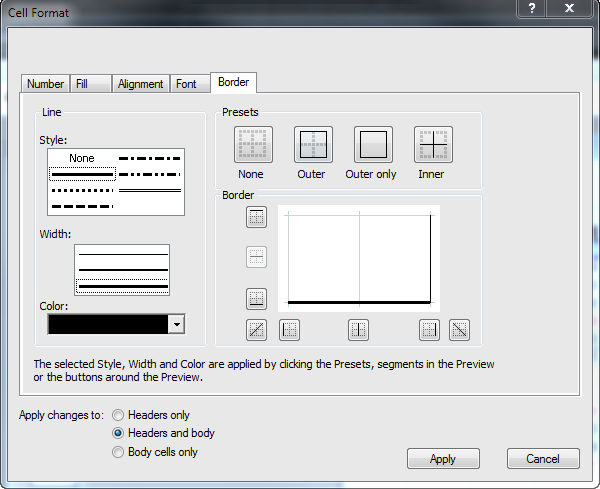
You can change the borders of selected cells from the Border tab. On the left of the dialog are three controls: Style, Width and Color. Selections you make here do not result in any change to the borders, but instead select the properties of the border that you want to change. After you've selected the desired properties, select which side border you want to change using the controls on the right-side of the diagram, especially the Border pane. In the Border pane, click on the side that you wish to change. The Border pane shows you the selection when you click, and actually records the change that will be made when you hit apply. The Presets are for convenience and are equivalent to manually changing all the sides one-at-a-time in the Border pane.
History
Added in Analytica 5.0